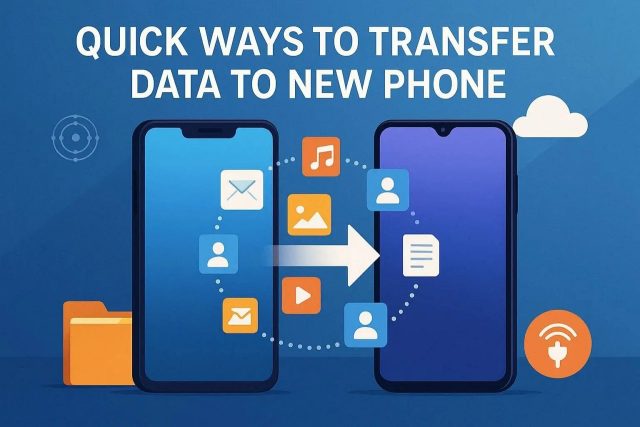
Whenever you buy a new smartphone, moving your old data feels confusing. You worry about losing contacts or important chats during the process. Yet, various quick and easy solutions are available to help you migrate your data. So, this guide explains easy ways to transfer data to a new phone safely for everyone. You will learn clear choices, along with simple tools and smart tips for switching success.
Part 1. How to Select the Best Phone Transfer Tool in 2026?
Before methods begin, understand simple checks that guide safe moves between phones. Below are key things to look for when picking the best phone transfer tool:
- Always ensure the tool supports both Android and iPhone devices without issues.
- Faster transfer processes save time, especially when moving large files.
- Pick a tool that moves all kinds of data, including messages and apps.
- Choose a tool that works equally well for both Android and iPhone.
- Good transfer tools provide a backup before moving to prevent file loss.
Part 2. Top Tested Techniques to Transfer Data to New Phone [Android/iPhone]
Upon knowing how to choose wisely, it helps to explore the methods people trust most today. So, this part shows the 7 ways to transfer data to a new phone:
Way 1. Dr.Fone – Phone Transfer | Best Solution with No Data Loss
Dr.Fone – Phone Transfer is a complete solution built for quick and safe data migration. It provides a one‑click transfer option that works without cloud backup or unstable Wi‑Fi. Users will be able to migrate 8 data types, like photos and app data, securely. Plus, ultra‑fast performance makes every data switch simple and minimizes downtime between phones.
In addition to phone data, it supports WhatsApp and WhatsApp Business chats for smoother messaging data. This data transfer tool also allows easy phone-to-phone transfer across platforms like iOS to Android or Android to iOS. Plus, its guided interface reduces mistakes and ensures secure, complete transfers across systems.
Guide to Migrate Phone Data from Old to a New Phone via Dr.Fone
Go through the given guide to find out how this phone-to-phone transfer tool works to migrate data between devices:
Step 1. Access the Tool’s Phone Transfer Feature
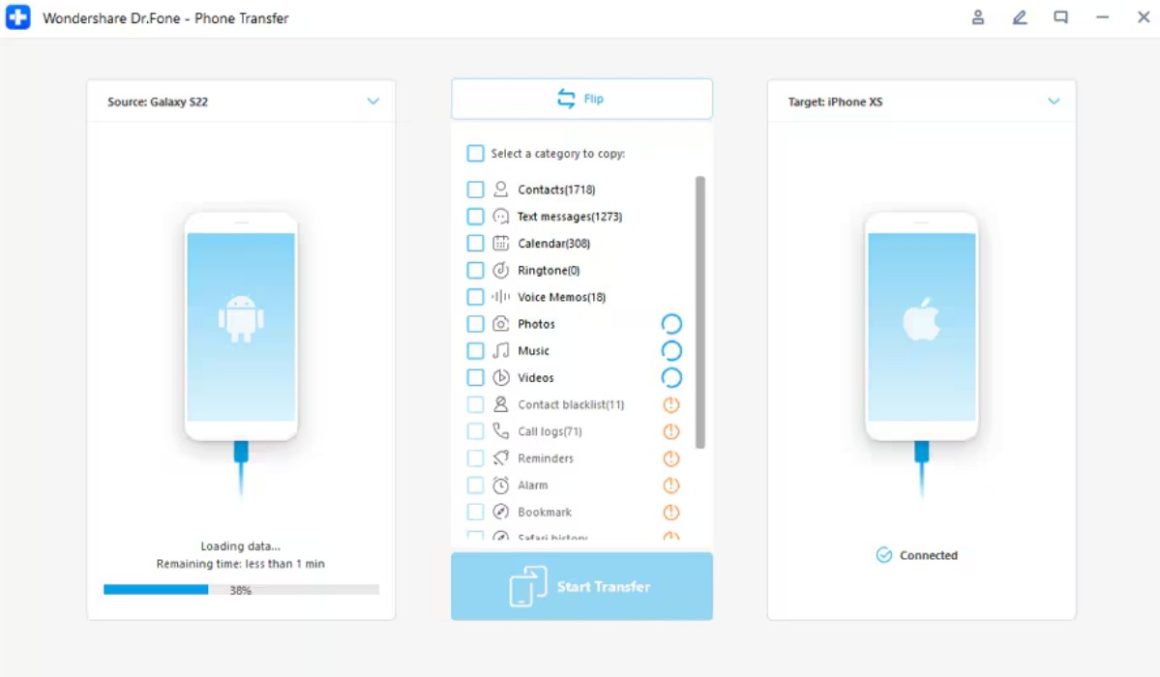
Launch the software to enter the “Toolbox,” and select “Phone Transfer.” Later, connect both mobile devices to the computer using the compatible USB cables.
Step 2. Select the Content You Want to Transfer
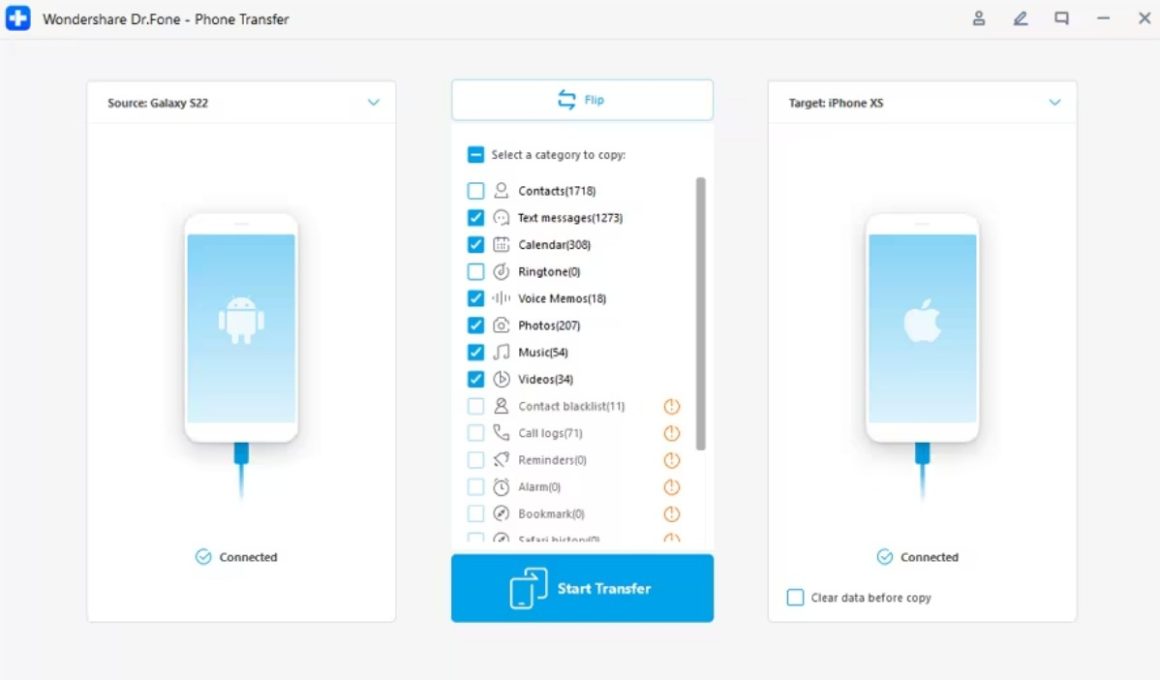
Subsequently, confirm that Old Phone is set as the source device and New Phone as the destination. Then, opt for the data categories you wish to move and click “Start Transfer.”
Step 3. Finish the Phon Transfer Process
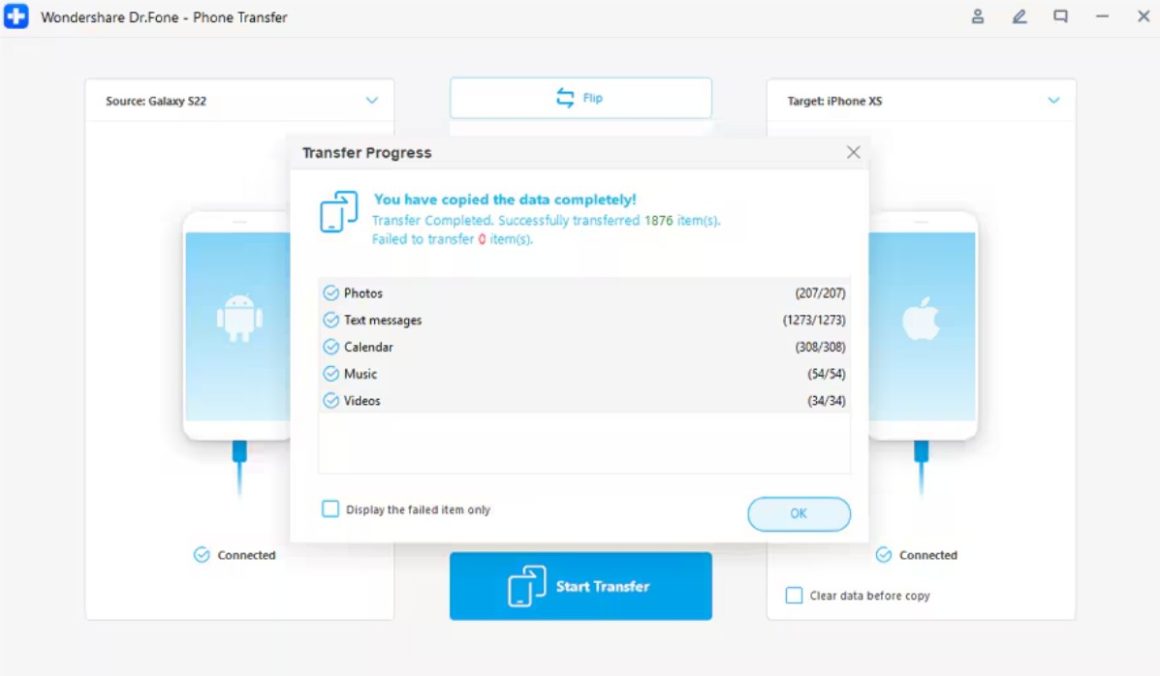
The program will begin copying the selected data, and a confirmation message will appear once finished.
Cons
- This advanced process requires desktop installation, which may not suit everyone.
- The free version has limited features, so users must upgrade for full access.
Way 2. Smart Switch/Android Switch
Smart Switch and Android Switch are official tools for transferring phone data. The tool also supports selective transfers, letting users choose exactly what to move securely. Apart from that, it is even compatible with WhatsApp transfer to a new phone. So, let’s explore how you can use Smart Switch to move data:
Step 1. Open the app on your old phone and choose “Send From This Phone.” Afterward, select the “Cable” option to prepare for a wired data transfer.
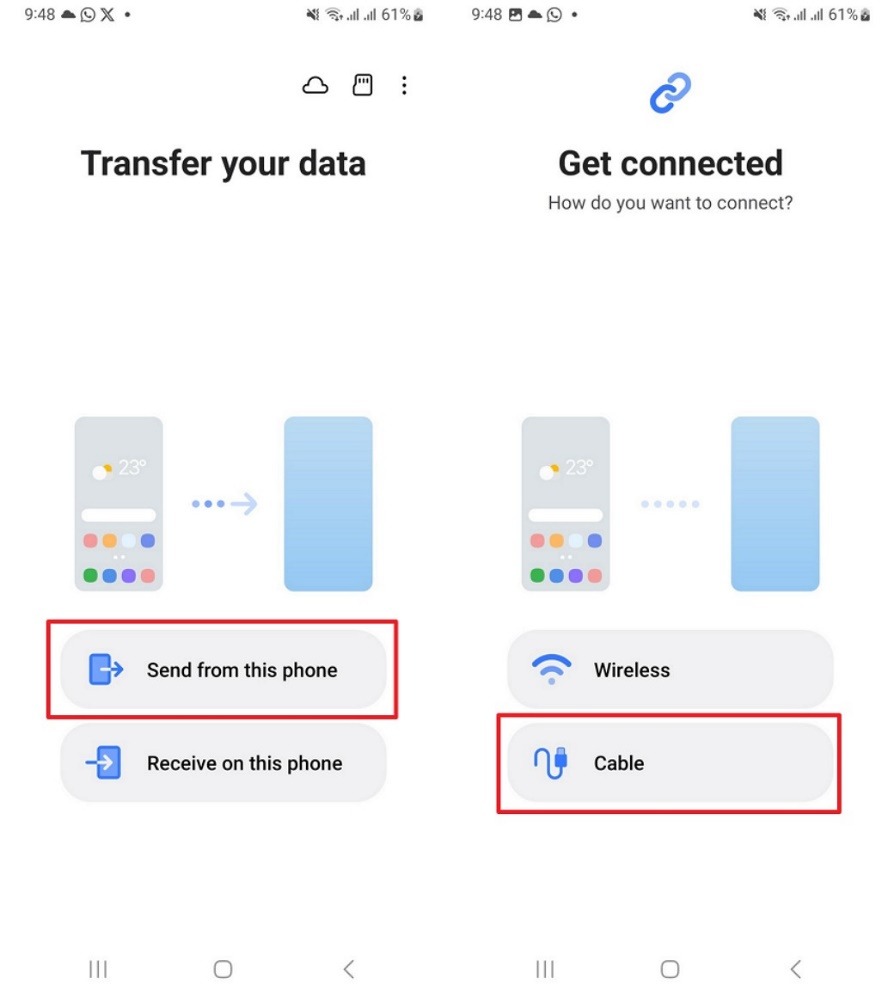
Step 2. Later, access the app on your new Samsung and tap “Receive On This Phone.” Connect both phones using a cable, allowing the app to scan available data.
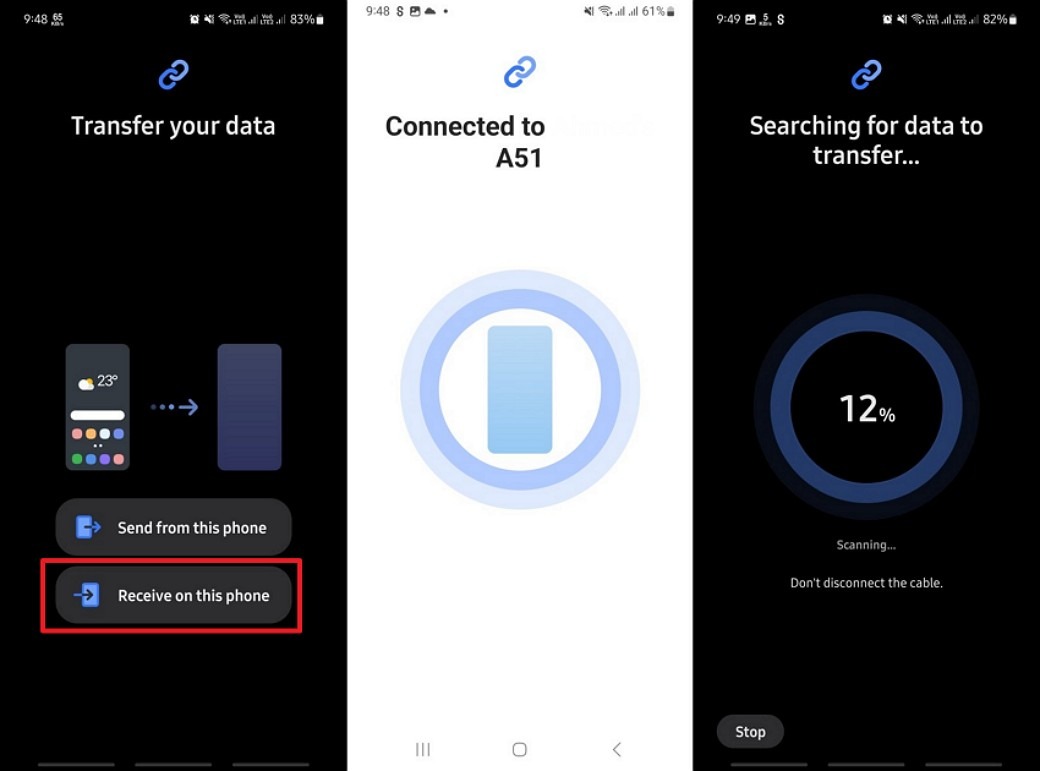
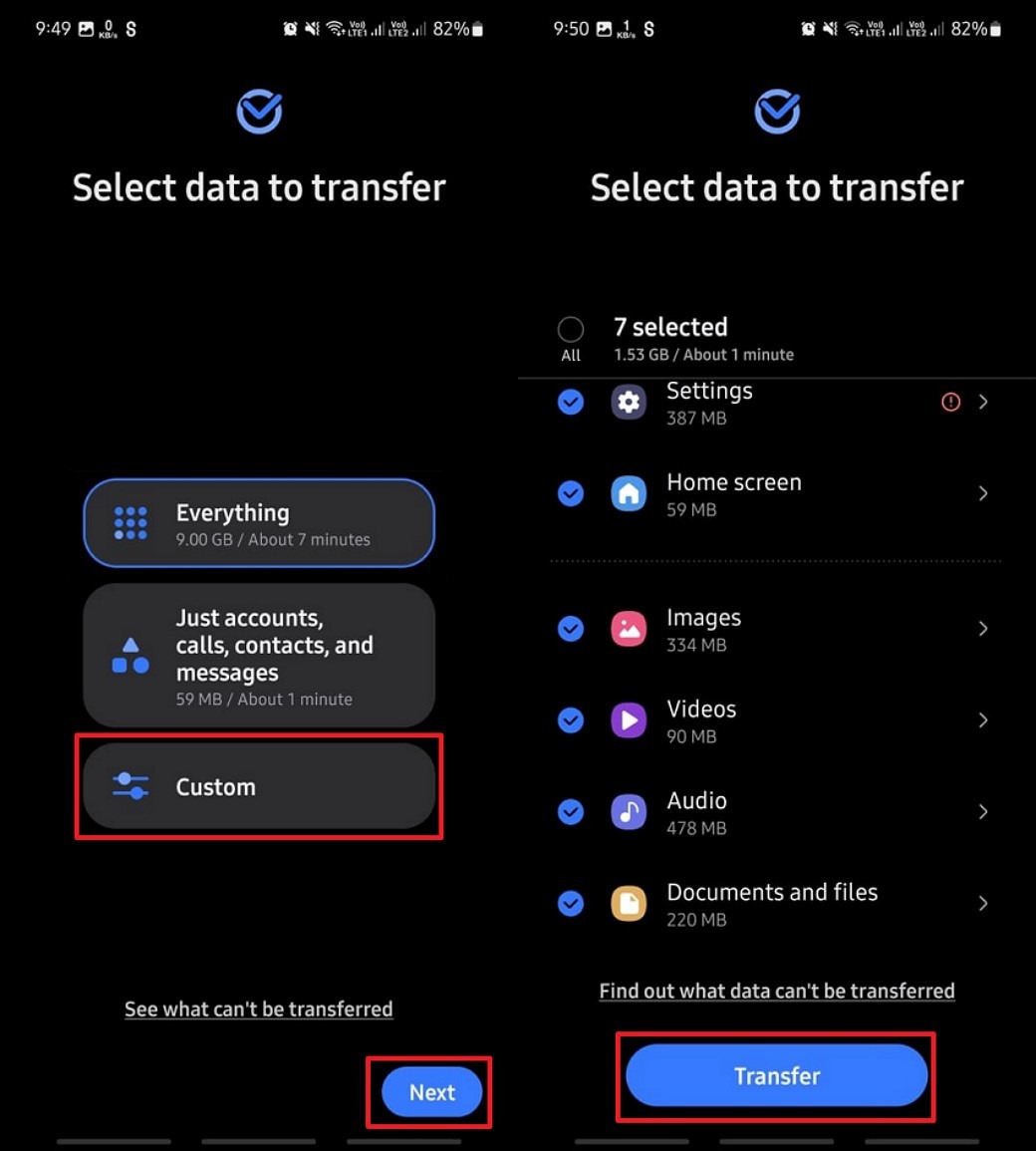
Step 3. After scanning completes, select “Custom” and tap “Next” to review the options. Pick the data categories you want and press “Transfer” to begin copying.
Cons
- Smart Switch only works best with Samsung, limiting compatibility across other brands.
- Large media files may slow down transfer speed or cause temporary connection drops.
Way 3. Move to iOS
Move to iOS enables a secure or wireless way to transfer data to a new phone, like contacts and MMS messages. It copies multiple types of data, such as call history and mail accounts, directly from Android. Photos and videos move in original quality without compression or loss. Hence, review the given steps to migrate data using Move to iOS:
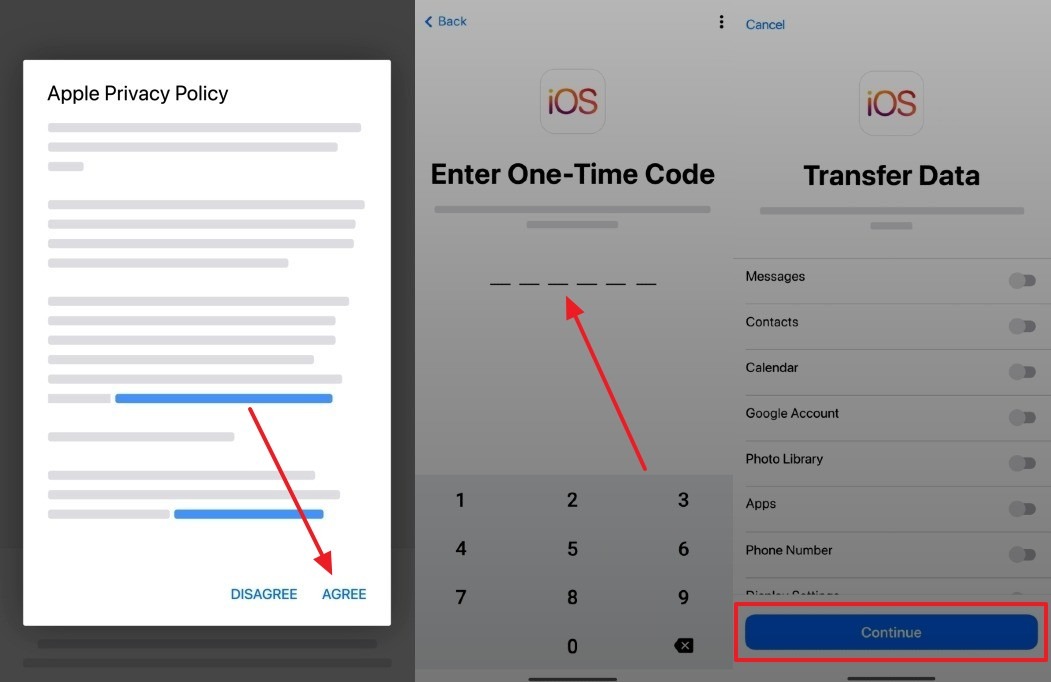
Step 1. During setup, select “From Android” and tap “Continue” to generate the “One-Time Code” required for the transfer.
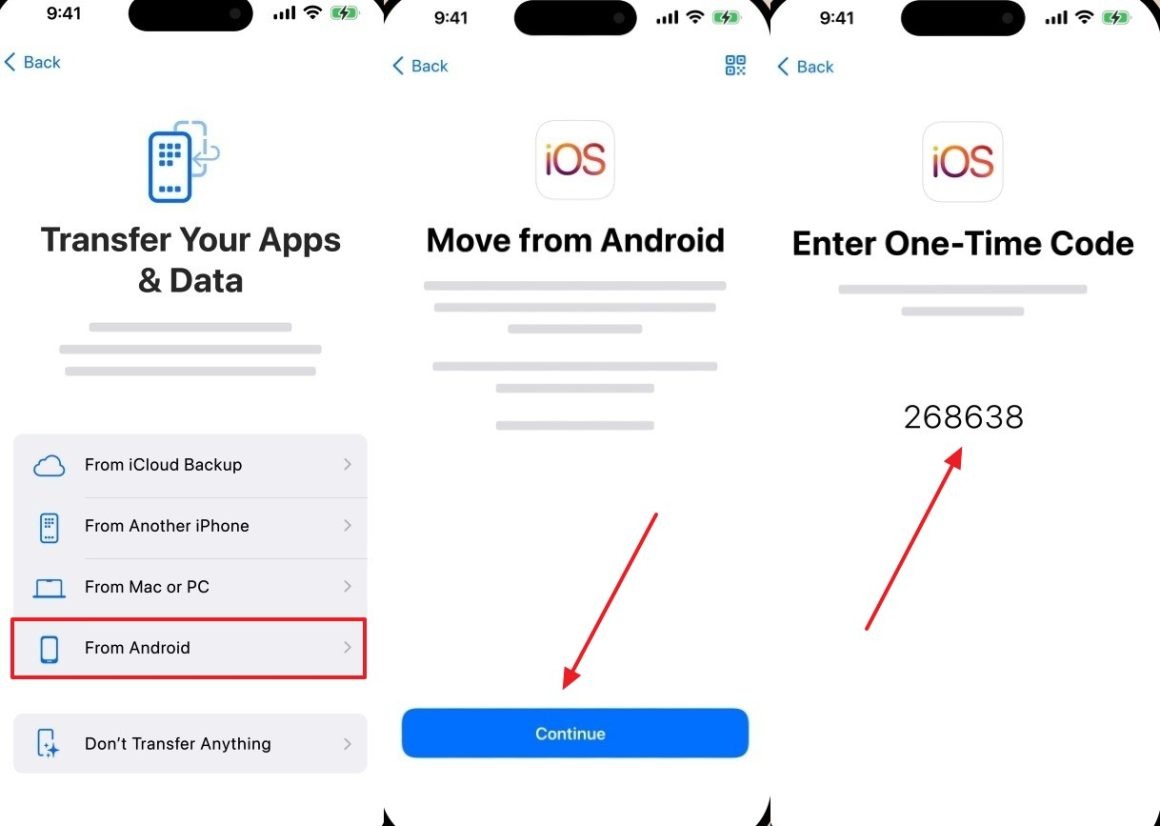
Step 2. As you tap “Agree” on your Android device, enter the displayed “One-Time Code” to choose the data you want and tap “Continue.”
Cons
- Requires resetting your device when already set up.
- Large transfers may take several hours and cause potential delays.
Way 4. Google Drive Backup
You can also use Google Drive backup for secure phone-to-phone transfer by saving apps and documents. It works across Android and iPhone for syncing important files. Plus, this method ensures cloud-based restoration and keeps data accessible anytime. So, go through the given steps to sync data between phones:
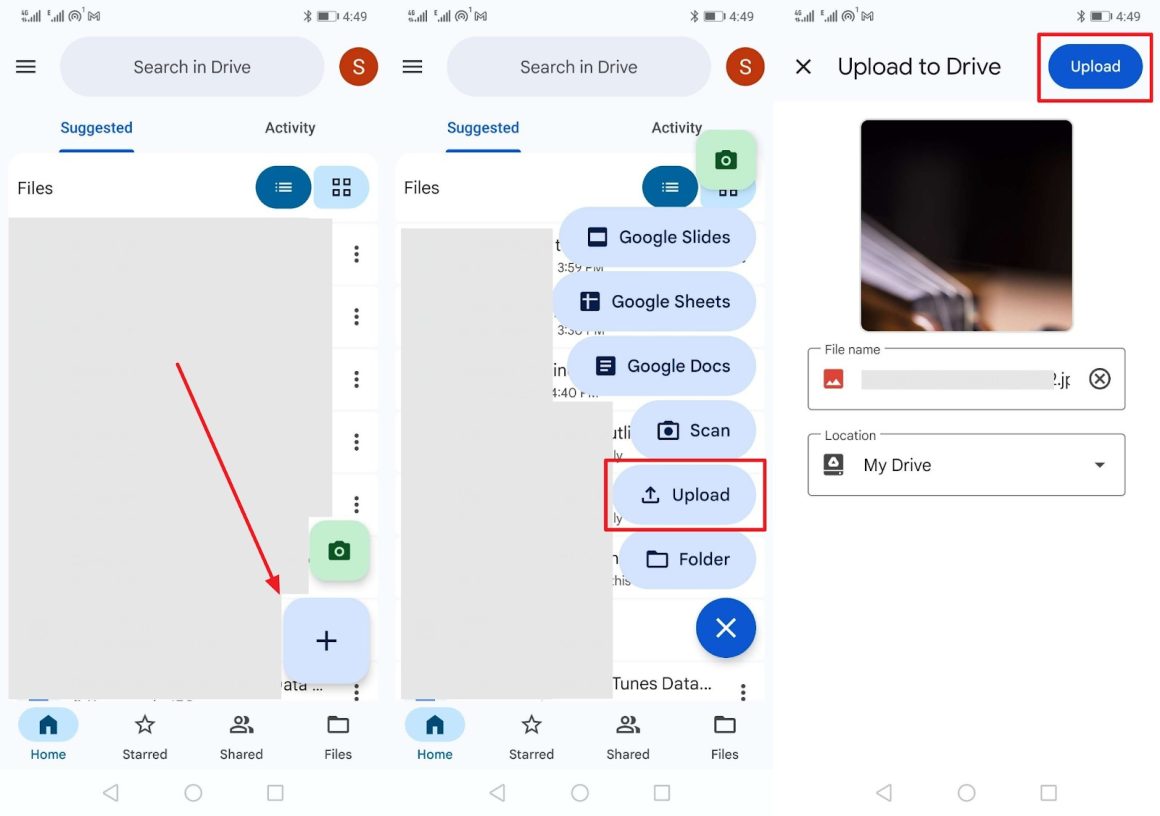
Step 1. Upon pressing the “+” icon, opt for “Upload” and pick the files for migrating. Subsequently, tap the “Upload” button to add the chosen files to your account.
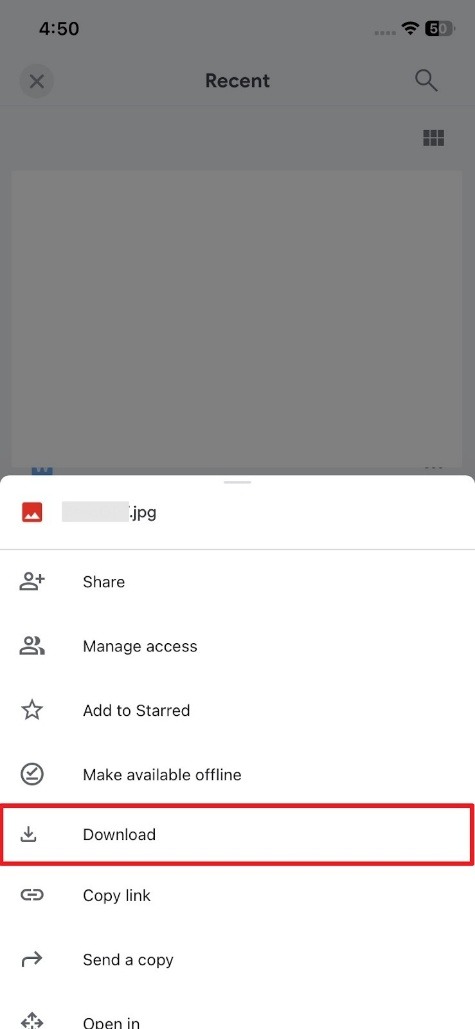
Step 2. Log in to the same account and locate the uploaded file. Later, tap the “Three Dots” menu beside it and select “Download” to retrieve your file.
Cons
- It needs a strong and stable internet connection for smooth backup uploading.
- Google Drive requires sufficient storage space for large backups or media.
Way 5. Cloud Storages (Dropbox)
Dropbox is a convenient solution for phone-to-phone transfer of files. It securely uploads photos, videos, and documents to cloud storage for easy access. Users can retrieve important data anytime on a new Android or iPhone. Moreover, it supports shared links for quick one-time file delivery across devices. Let’s dive below to migrate data between phones without issues:
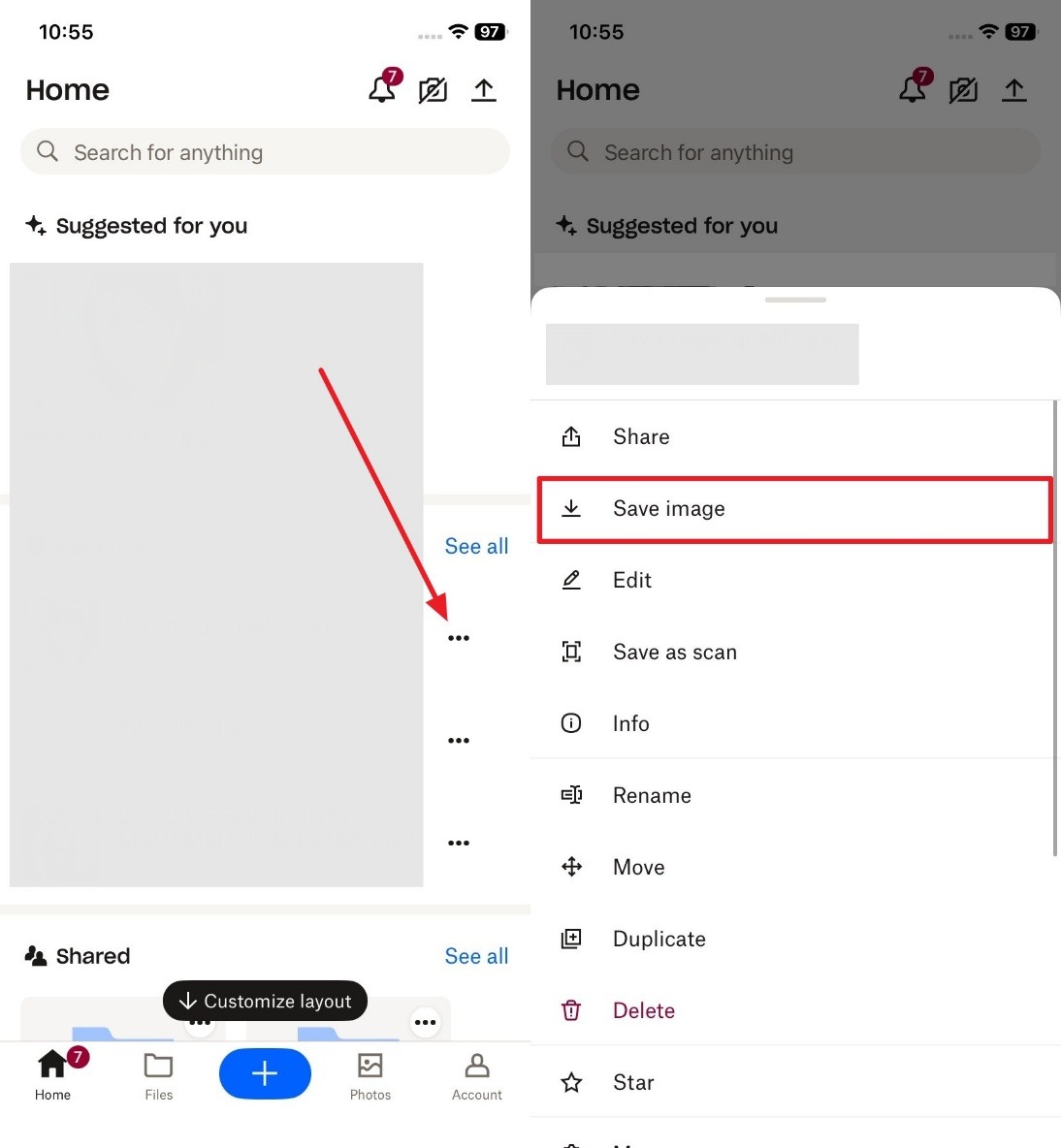
Step 1. As you tap the “+” button, choose “Upload Photos” or any other option to import your desired data.
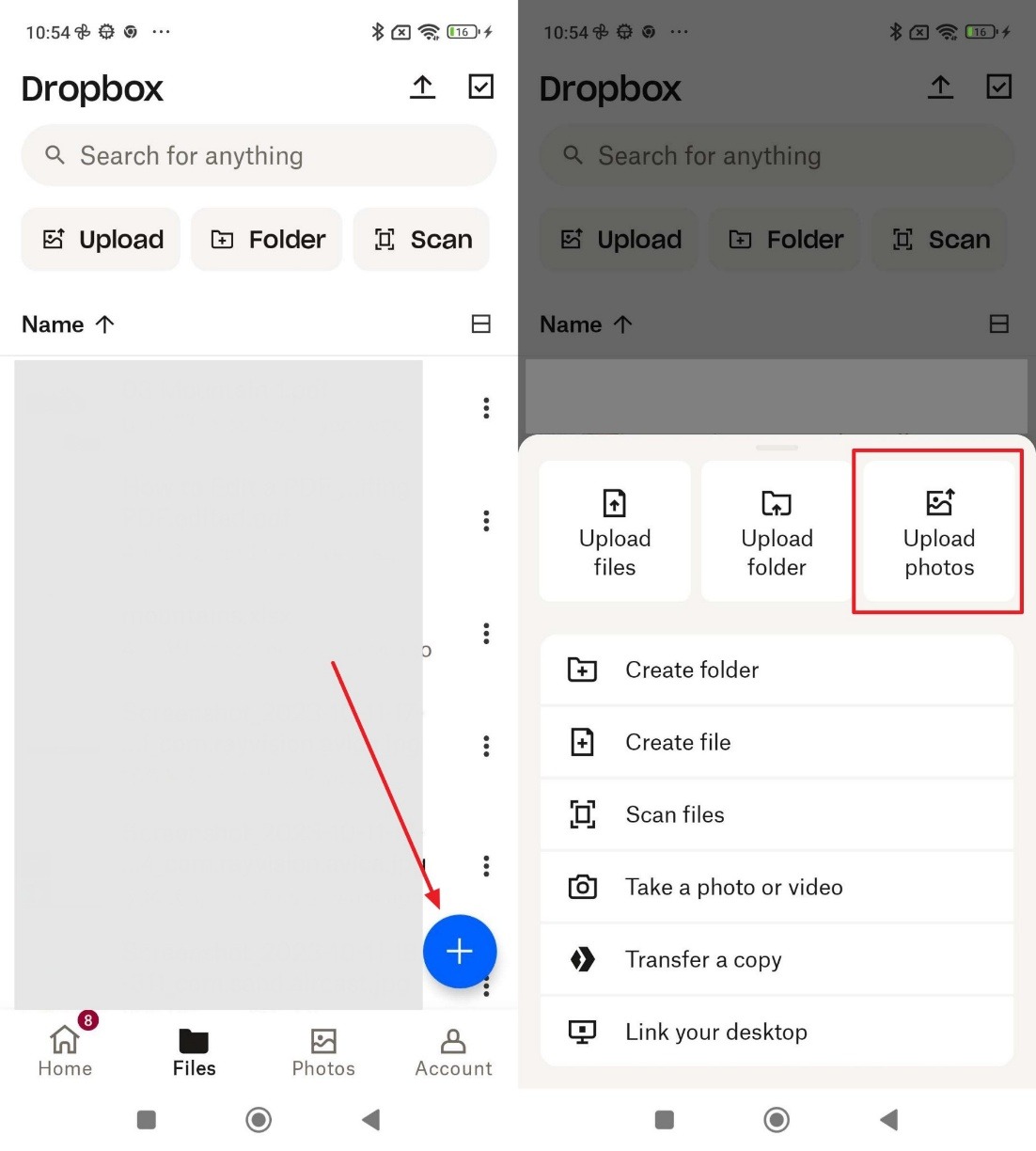
Step 2. Following this, access the same account to tap the “Three Dots” icon and opt for “Save Image.”
Cons
- The 2GB of free storage limits may restrict large media uploads.
- Sync errors can occur, leaving some files missing or duplicated.
Way 6. Email Clients
This method can help transfer contacts and calendars to new phones. It supports multiple accounts like Gmail and Outlook, making it useful when learning how transfer data from Android to iPhone. Users can attach their preferred attachment and send it to their iPhone’s email. Thus, follow the steps to transfer data using Gmail:
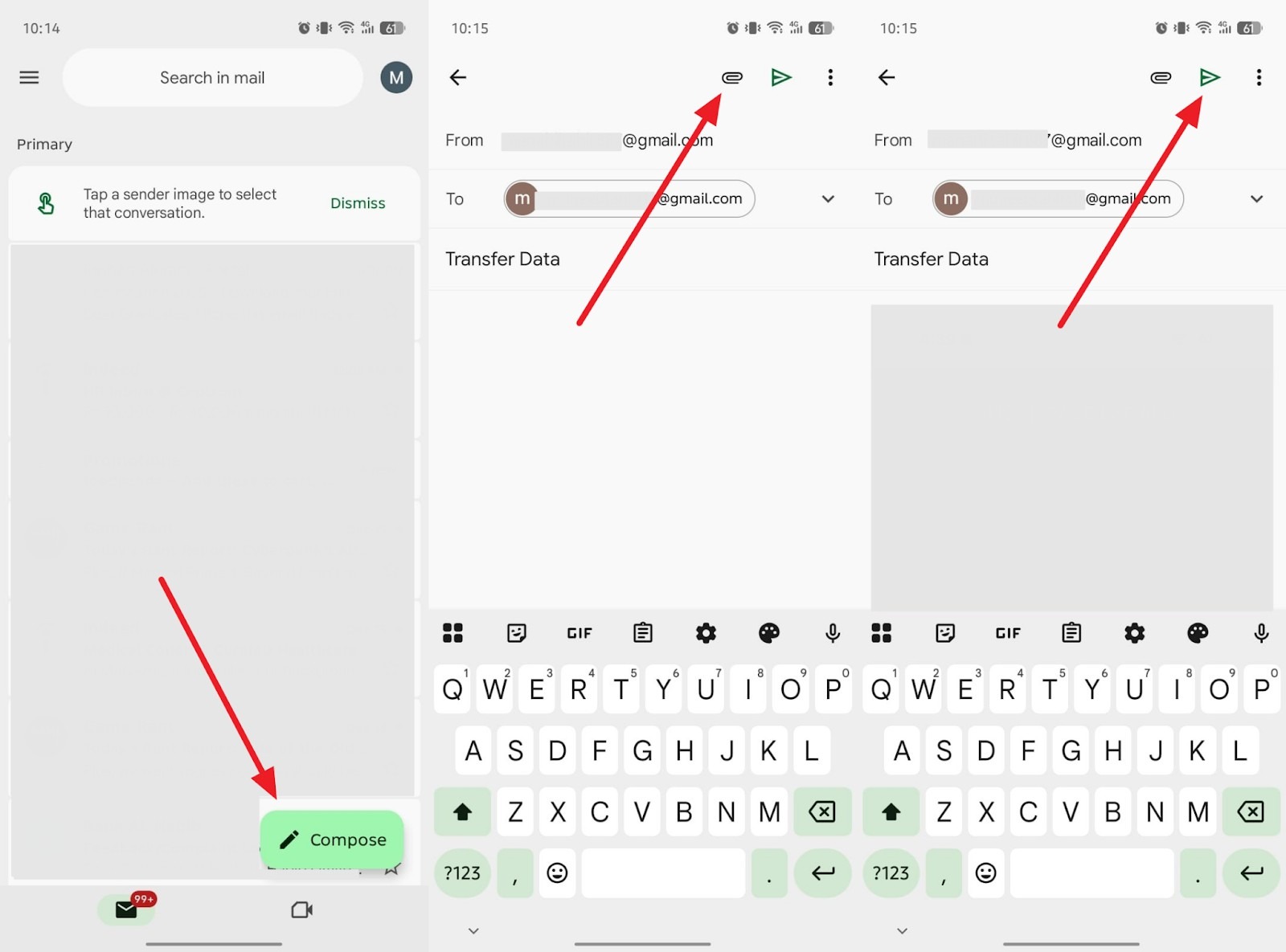
Step 1. On your send device, tap “Compose” and enter your receiving device’s email address. Press the “Attachment” icon to choose the preferred file and press “Send.”
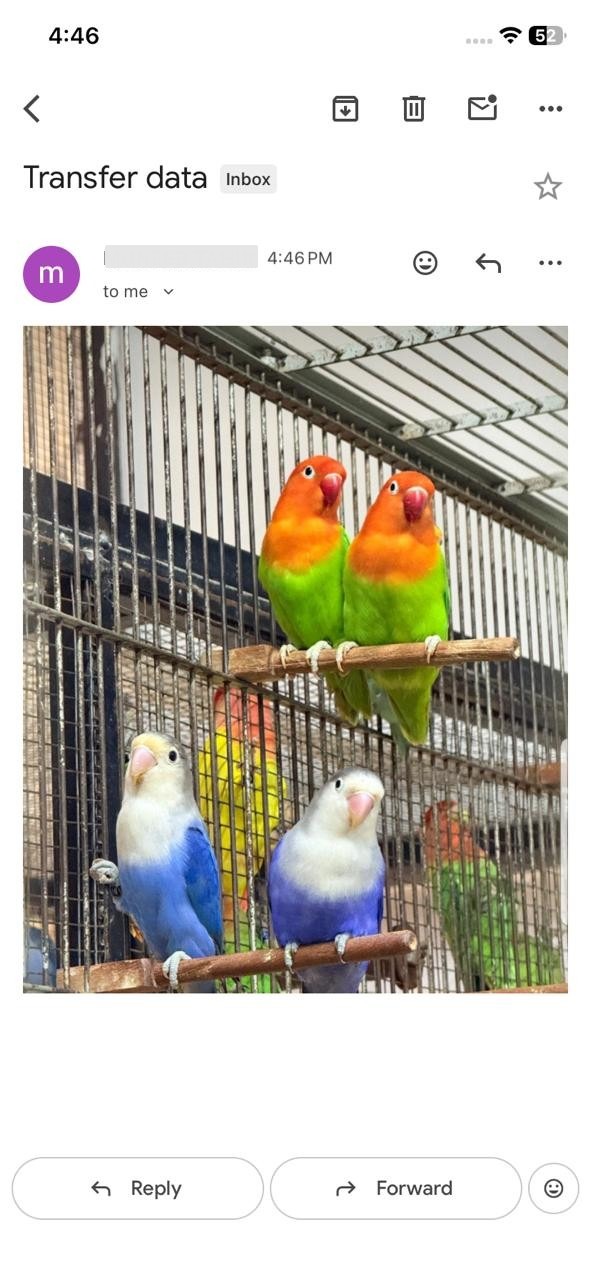
Step 2. Open the email on your receiving device and press and hold the attachment to select “Save.”
Cons
- Attaching large video or ZIP files fails due to Gmail’s size restrictions.
- It lacks a direct option to migrate contacts with photos or complete details.
Way 7. Instant Messaging Apps
Instant messaging apps like WhatsApp also help users transfer data to a new phone. You can send multiple data types, like contacts and videos, from one phone to another. Users can even forward files individually or in bulk without needing cables or extra tools. So, go through the steps to migrate data through the messaging app:
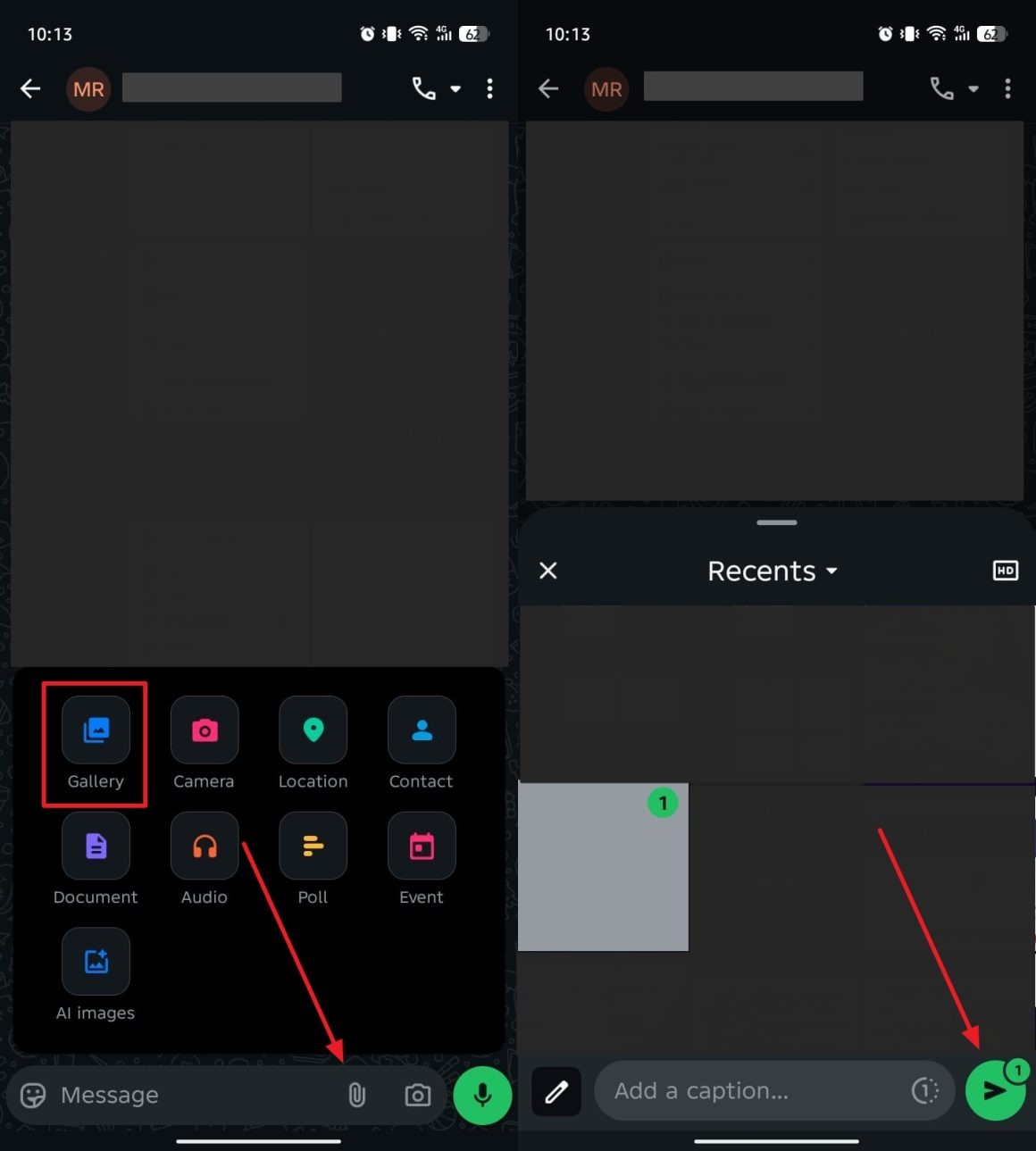
Step 1. Open the chat screen and tap the “Attachment” icon to reveal options. Select “Gallery” or any other data option to pick the files you want to move and press “Send” to share them.
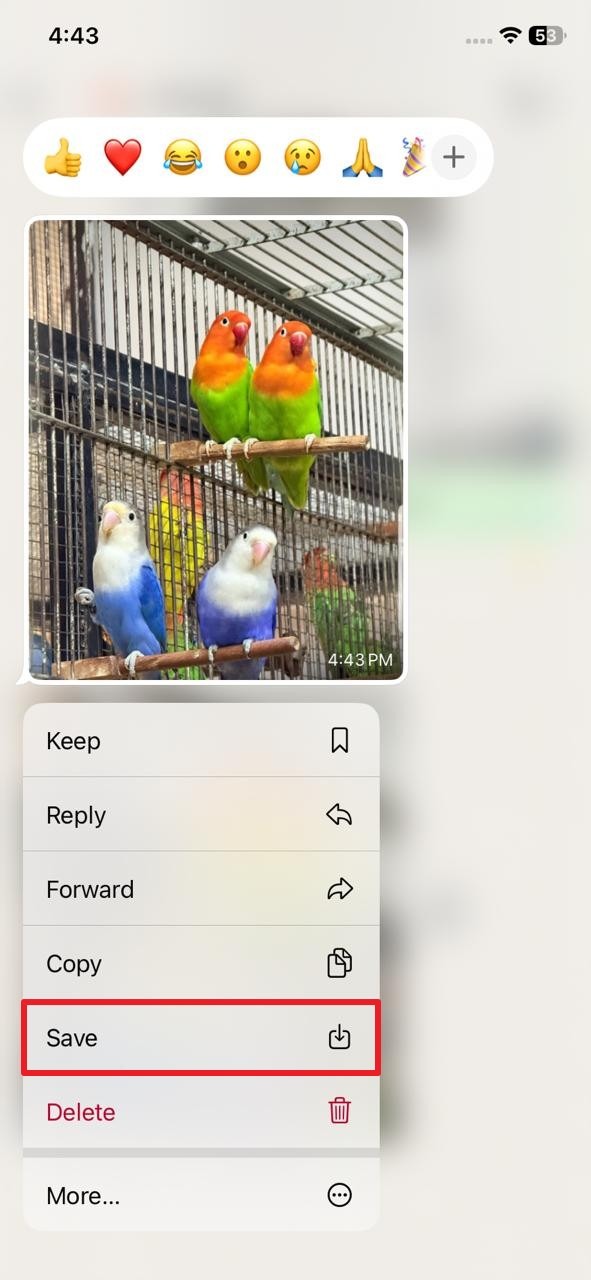
Step 2. Upon arriving at the file on your receiving phone, press and hold it for a few seconds and choose “Save” from the menu.
Cons
- Apps must be installed on both devices, or transfers cannot be completed.
- Large attachments can fail to send, slowing down the data transfer process.
Part 3. In-Depth Tabular Comparison of All Phone-to-Phone Transfer Methods
To help you choose the best solution, here’s a clear comparison of all the methods discussed below:
| Key Metrics | Dr.Fone Phone Transfer | Smart Switch / Android Switch | Move to iOS | Google Drive Backup | Cloud Storages | Email Clients | Instant Messaging Apps |
| Cross-Platform Phone Transfer | Yes, Android ↔ iOS | Android only | One-way only | No | No | No | No |
| Data Transfer Completeness | Full phone data coverage | Partial device data | Partial device data | Synced data only | Files only | Files only | Media only |
| Transfer Speed & Stability | Ultra-fast, offline | Fast, offline | Moderate, internet-based | Slow, internet-based | Slow, internet-based | Slow | Moderate |
| Built-In Backup Protection | Yes, local backup included | Limited | No | Cloud backup only | Cloud backup only | No | No |
| Ease of Use for Full Migration | Very simple, guided | Simple | Moderate | Moderate | Moderate | Moderate | Moderate |
Hence, Dr.Fone – Phone Transfer is the most complete, fast, and secure solution for phone-to-phone transfer in all directions.
Conclusion
In summary, many methods exist to move data, yet each has limits, such as slow speed or device restrictions. For safe and complete transfers, you need a reliable solution that simplifies processes and avoids errors. So, you should use Dr.Fone – Phone Transfer to easily transfer data to a new phone without losing important files or settings.